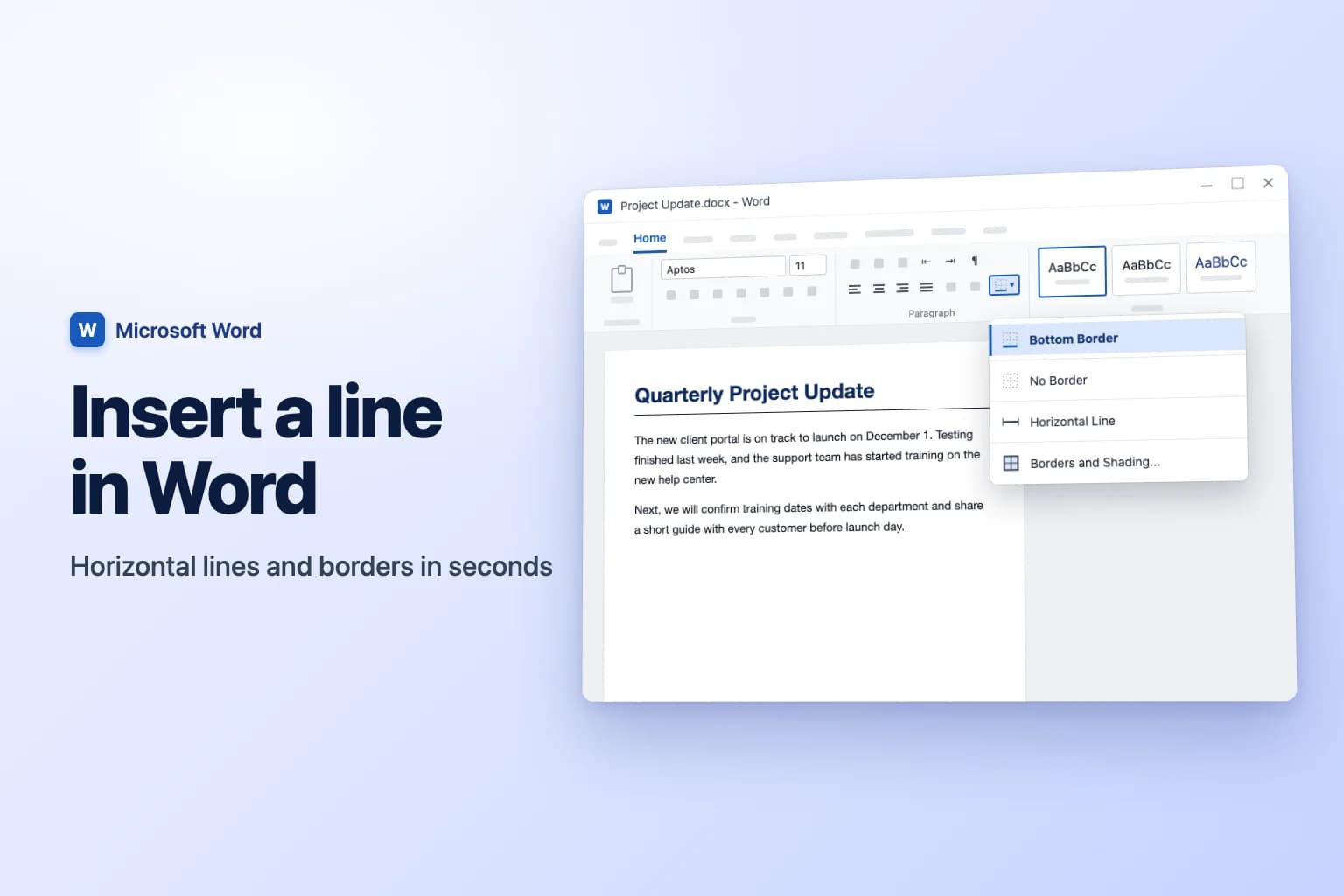
To insert a line in Word, type three hyphens (---) on an empty line and press Enter: Word turns them into a full-width horizontal line. For more control, click where you want the line and go to Home → Borders → Horizontal Line, or draw your own with Insert → Shapes → Line.
One thing to know before you start: the typed shortcut and the Borders menu don't create an object you can click and delete. They add a border to a paragraph, which is why some lines in Word seem impossible to remove. The fix is Home → Borders → No Border, covered below.
| Method | How | Best for |
|---|---|---|
| AutoFormat shortcut | Type ---, ===, ***, ___, ### or ~~~, then Enter | The fastest divider line |
| Horizontal Line | Home → Borders → Horizontal Line | A line you can resize and recolor |
| Bottom Border | Home → Borders → Bottom Border | A line under a heading or paragraph |
| Shapes | Insert → Shapes → Line | Lines at any angle or position, vertical lines |
| Tab leader | Paragraph → Tabs → Leader | Fill-in and signature lines on forms |
| Column line | Layout → Columns → More Columns → Line between | A vertical line between columns |
Insert a horizontal line by typing three characters
This is Word's AutoFormat feature, and it works in Word for Microsoft 365, Word 2024, 2021, 2019 and 2016 on Windows and Mac.
- Click at the start of an empty line where you want the line.
- Type three of the characters below.
- Press
Enter.
| Type, then press Enter | Line you get |
|---|---|
--- (hyphens) | Thin single line |
___ (underscores) | Thick single line |
=== (equal signs) | Double line |
*** (asterisks) | Dotted line |
### (number signs) | Triple line with a thick center |
~~~ (tildes) | Wavy line |
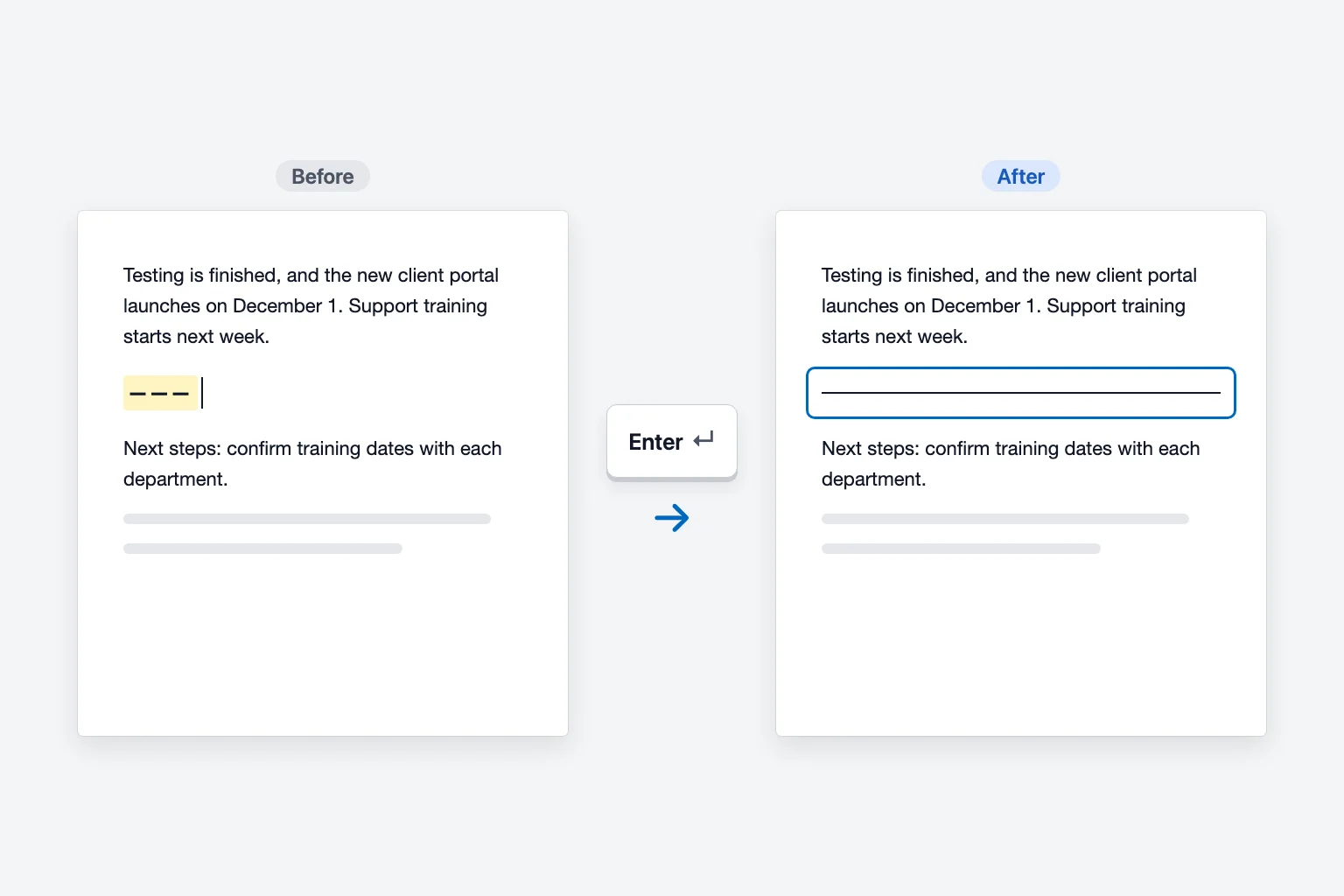
The line runs across the full width between the margins (or the column, in a multi-column layout). If you didn't want it, press Ctrl+Z (Cmd+Z on a Mac) or Backspace right away and Word gives you back the three characters. The small AutoCorrect Options button that appears next to the line also offers Undo Border Line.
The shortcut only fires when the characters are alone on their line. Typing Name: ___ and pressing Enter leaves the underscores as they are.
Insert a line from the Borders menu
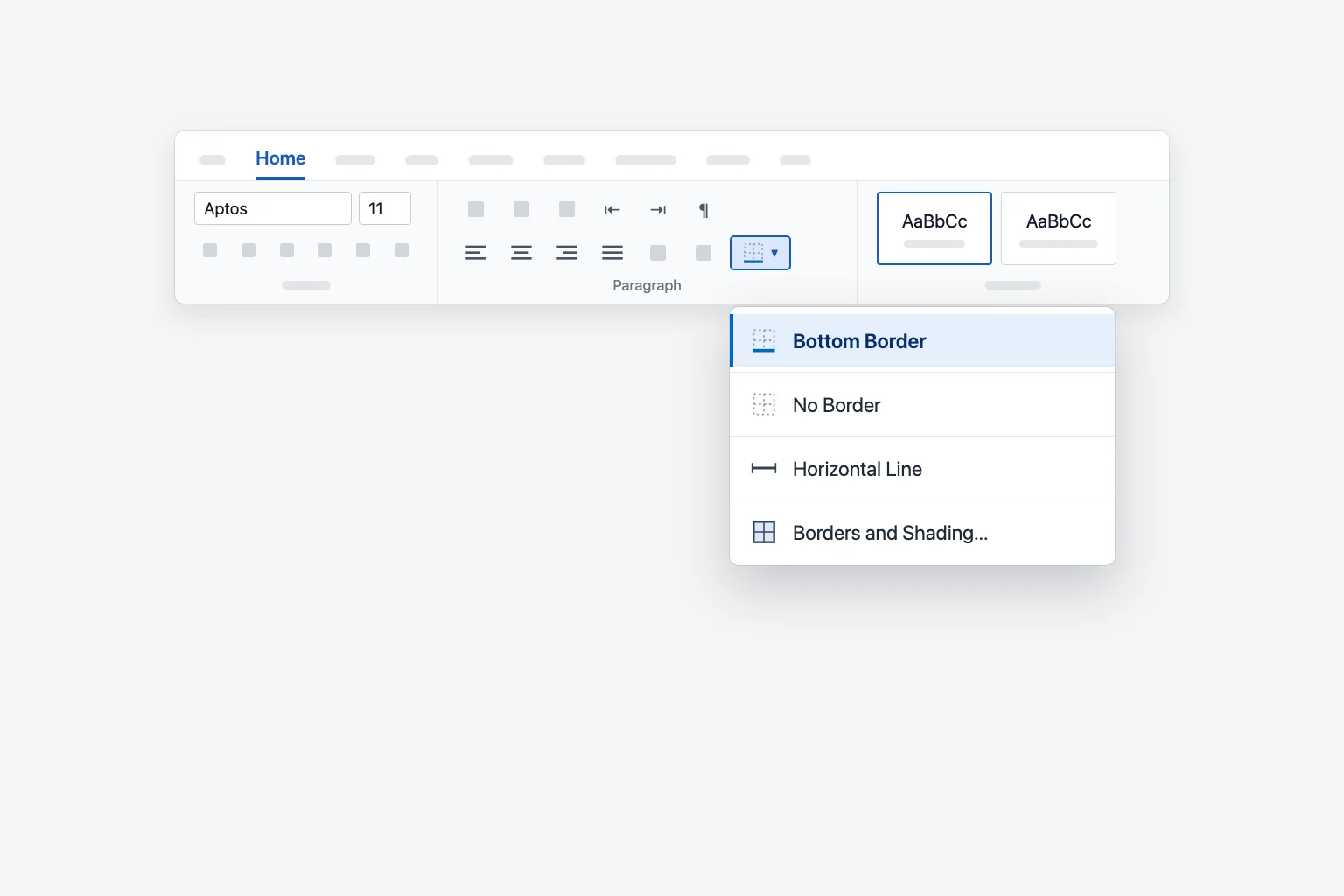
The Borders button sits in the Paragraph group on the Home tab. Its small arrow opens the menu with every line option.
Horizontal Line
- Click on an empty line where you want the line.
- Go to Home and click the arrow next to Borders.
- Choose Horizontal Line.
Word inserts a grey line across the page. Unlike the other methods, this one is an object: click it to select it, drag its handles to make it shorter, and double-click it to open Format Horizontal Line, where you can change its width, height, color and alignment. Press Delete with it selected to remove it.
Bottom Border (a line under a heading)
- Click anywhere in the heading or paragraph. You don't need to select the text.
- Go to Home → Borders (the arrow) and choose Bottom Border.
The line stays attached to the paragraph. Add text and it moves down with it, which makes it ideal for headings, letterheads and resume section titles. If the heading uses a style such as Heading 1, right-click the style in the Styles gallery and choose Modify → Format → Border to put the line under every heading of that style at once.
Change the line's style, color or thickness
- Click in the paragraph that has the line.
- Go to Home → Borders → Borders and Shading....
- On the Borders tab, choose a Style, Color and Width.
- In Preview, click the bottom edge to apply it (click the top, left or right edge for other sides).
- Make sure Apply to says Paragraph, then click OK.
This works for lines you made with --- too, since they're paragraph borders.
Draw a line with Shapes
Shapes give you a line you can place anywhere, at any angle and length.
- Go to Insert → Shapes and choose Line in the Lines group.
- Click and drag on the page. Hold
Shiftwhile you drag to keep the line perfectly horizontal or vertical. - With the line selected, use the Shape Format tab: Shape Outline changes the color, Weight and Dashes for thickness and style.
To move a drawn line, point at it until the cursor shows four arrows, then drag. If the line jumps around as you type, select it, click Layout Options next to it and choose Fix position on page. For an arrow instead of a plain line, pick one of the arrow shapes in the same group.
Make a signature or fill-in line
Forms need lines that people can write on, and the method you choose decides whether they stay aligned.
Underscores. Type a label such as Signature: and hold Shift+- to type underscores. It's quick but hard to line up across several rows.
Underlined tab (best for forms). Type the label, press Ctrl+U (Cmd+U on a Mac), press Tab a few times, then press Ctrl+U again. You get an underline that ends exactly at a tab stop.
Tab leader (neatest). This draws the line to a fixed point every time:
- Click the small arrow in the corner of the Paragraph group and click Tabs....
- Under Tab stop position, type where the line should end, for example
6". - Set Alignment to Right and Leader to 4 ____.
- Click Set, then OK.
- Type
Name:and pressTab. The line fills the space to the tab stop.
Table border. For a signature block with a name under the line, insert a table, remove its borders with Borders → No Border, then add a Top Border to the cell where the name goes.
In Word for Windows, Insert → Signature Line adds a Microsoft Office signature line for digital signatures, which is a different thing from a printed line to sign by hand.
Insert a vertical line in Word
- Between columns: go to Layout → Columns → More Columns..., tick Line between and click OK. Word draws a line between all columns in that section.
- Next to a paragraph: click in the paragraph and choose Home → Borders → Left Border (or Right Border). This is the usual way to make a quote bar.
- Anywhere else: draw a line with Insert → Shapes → Line while holding
Shiftand dragging up or down.
How to remove a line in Word that won't delete
If you click a line and nothing gets selected, it's almost always a paragraph border, not an object.
- Select the paragraph just above the line and the one just below it (drag across both).
- Go to Home → Borders and choose No Border.
On Windows you can also click in the paragraph and press Ctrl+Q, which removes paragraph formatting, borders included. If neither works, check these other causes:
- The line is in the header or footer. Many templates put a border under the header. Double-click the header, click in it, and choose Borders → No Border.
- It's a shape. Click exactly on the line until handles appear, then press
Delete. If you can't catch it, go to Home → Select → Selection Pane and delete it from the list. - It's a page border. Go to Design → Page Borders and choose None under Setting.
- It's a table. Click in the table, then use Borders → No Border, or delete the table if it's empty.
- It's a vertical line in the margin. That's a change bar from Track Changes. Accept or reject the changes on the Review tab and it disappears.
Stop Word from adding lines automatically
If Word keeps turning your dashes into lines, turn the feature off:
- Go to File → Options → Proofing.
- Click AutoCorrect Options... and open the AutoFormat As You Type tab.
- Clear Border lines under Apply as you type and click OK.
The faster route is the AutoCorrect Options button that appears right after Word makes a line: choose Stop Automatically Creating Border Lines. Lines that already exist stay until you remove them with No Border.
Insert a line in Word for Mac
Word for Mac uses the same ribbon. Type --- and press Return, use Home → Borders → Bottom Border, or draw one with Insert → Shapes → Line (hold Shift for a straight line). If you don't see Horizontal Line in the Borders menu on your version, use a bottom border instead. To turn off automatic lines, go to Word → Settings (Preferences in older versions) → AutoCorrect → AutoFormat As You Type and clear Border lines.
Insert a line in Word for the web
In Word for the web, Microsoft lists hyphens, equal signs, underscores and asterisks for the typed shortcut, so ---, ===, ___ and *** followed by Enter all work. You can also click in a paragraph and use Home → Borders → Bottom Border. Drawing tools are more limited in the browser, so if you need a shape line at an angle, choose Editing → Open in Desktop App and draw it there.
Frequently Asked Questions
What is the shortcut for a horizontal line in Word? Type three hyphens (---) on an empty line and press Enter. Use === for a double line or ___ for a thick one.
How do I put a line under a heading in Word? Click in the heading and choose Home → Borders → Bottom Border. The line moves with the heading as you edit.
How do I draw a straight line in Word? Go to Insert → Shapes → Line, then hold Shift while you drag so the line stays perfectly horizontal or vertical.
How do I delete a horizontal line in Word? If you can't select it, it's a paragraph border: select the paragraphs around it and choose Home → Borders → No Border. If it selects, press Delete.
How do I make a line to write on in Word? Use an underlined tab (Ctrl+U, then Tab) or a tab stop with an underscore leader, so every fill-in line ends at the same point.
Why does Word turn my dashes into a line? That's AutoFormat. Press Ctrl+Z to undo it once, or clear Border lines in AutoCorrect Options → AutoFormat As You Type to stop it for good.
Clean lines, cleaner writing
A line under a heading makes a document look organized, but the paragraphs around it still have to read well. CoreGPT for Word works inside your document: select a paragraph and ask it to make the text clearer or more professional, then drop the new version straight back in. It's free to start and works in Word for Windows, Mac and the web.
 CoreGPT
Update for the Acme account
Thank you for your patience while we resolved the delivery issue.
We have identified the cause of the delay and put measures in place to ensure it does not happen again. Your order will arrive on Friday.
Please let us know if there is anything else we can help with.
We identified the cause of the delay and have put safeguards in place so it won’t happen again. Your order will arrive this Friday.
Try it: CoreGPT for Word
Related reading: